
How do you choose the best font inspector for Chrome?
Start with what you need to take away. A family name may be enough for a quick reference. Recreating a heading takes more information, including size, weight, spacing, and color. Diagnosing a missing web font needs a different check again.
| Your task | An option to consider | Why it fits |
|---|---|---|
| Inspect type and pick colors together | FontGoblin | Keep two text picks, copy CSS, and sample a screen pixel in one movable inspector. |
| Check font details while browsing | WhatFont | Hover for identification and click for styles, source information, and copying controls. |
| Research and organize typefaces | Fonts Ninja | Explore font information, bookmarks, similar typefaces, and search filters. |
| Investigate a fallback or loading problem | Chrome DevTools | Check rendered fonts and inspect the CSS rules affecting the selected text. |
Try your shortlist on the same heading, paragraph, and link. Keep the browser zoom and window width consistent, since responsive styles can change the size you see. Check how easily you can read a result, copy a value, and return to browsing. If you spend most of your time comparing headings, that everyday workflow deserves more weight than a feature you rarely use.
FontGoblin for keeping useful design details
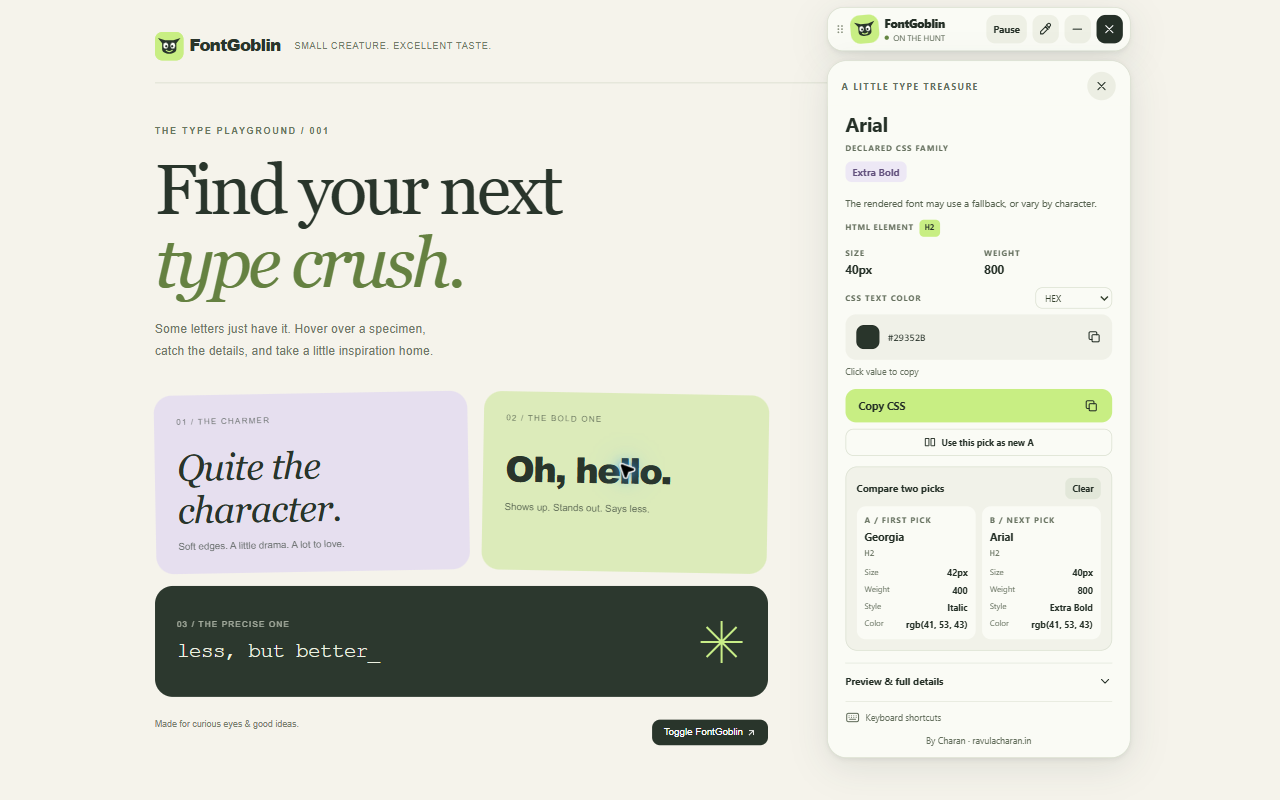
FontGoblin shows the computed CSS family, size, style, and HTML tag on hover. Click text to keep its details, copy CSS, or compare it with another pick. The panel also offers an editable preview, a checked element selector, and a contrast estimate for determinable solid CSS color pairs.
The native eyedropper samples a displayed screen pixel. Text color values are a separate view, available in HEX, RGB, HSL, HWB, and computed CSS format. That distinction matters when transparency or antialiasing changes what you see.
You can move the inspector and adjust its controls. Inspection while minimized is optional and off by default. Read the FontGoblin user guide for the full workflow and supported-page limits.
WhatFont for focused font inspection
WhatFont’s current listing describes a hover-and-click workflow with font names, source information, HTML elements, letter spacing, pixel line height, and CSS copying. It also lists multiple color formats. Several of these capabilities overlap with FontGoblin.
If font inspection is your main task, compare how each panel feels on the pages you use. Small details such as where the controls sit and how you exit inspection can matter more than a longer feature list. Check the official WhatFont listing for its current features.
Fonts Ninja for finding and organizing typefaces
Fonts Ninja describes a broader discovery workflow. Its listing includes a page font summary, available styles, foundry and price information, bookmarks, similar fonts, and filtered font search. The publisher says its Font DNA system analyzes font files for identification.
Those discovery tools may be useful when you are researching options for a project. They are a different emphasis from collecting a selected element’s CSS. Read the official Fonts Ninja listing for details. Its accuracy claims are the publisher’s description, rather than a benchmark established here.
Use DevTools when the font result needs checking
A computed font-family value is a stack of requested fonts. It does not establish which face painted every character. A font may be unavailable, fail to load, or lack a glyph.
Right-click the text, choose Inspect, and open Elements → Computed → Rendered Fonts. Chrome documents that this reports typefaces used by its rendering layer. Check the computed size and weight above it, then investigate the CSS rules if the result differs from what you expected. See Chrome’s rendered-font explanation and CSS inspection reference.
Before you use the font in your own work
Finding a font name does not provide a license to use its files. Check the foundry’s terms for your project. If the letters are part of an image or canvas, inspecting an HTML element will not reliably identify their typeface. Start with real page text, and verify an uncertain result before building around it.