Learn to inspect website fonts, compare two text styles, pick a color, and copy CSS. Start with hover and click, then choose the settings that fit your workflow.
Click FontGoblin in Chrome’s Extensions menu. Pin the icon to your browser toolbar if you’d like quick access next time.
3
Choose Start inspecting
Read the first-use notice and choose Start inspecting. Your choice is remembered locally. Move the pointer over some text to see your first font label.
Use desktop Chrome 127 or later. Chrome’s internal pages and the Web Store itself cannot be inspected.
02
POINT. PIN. UNDERSTAND.
Meet the type behind the page.
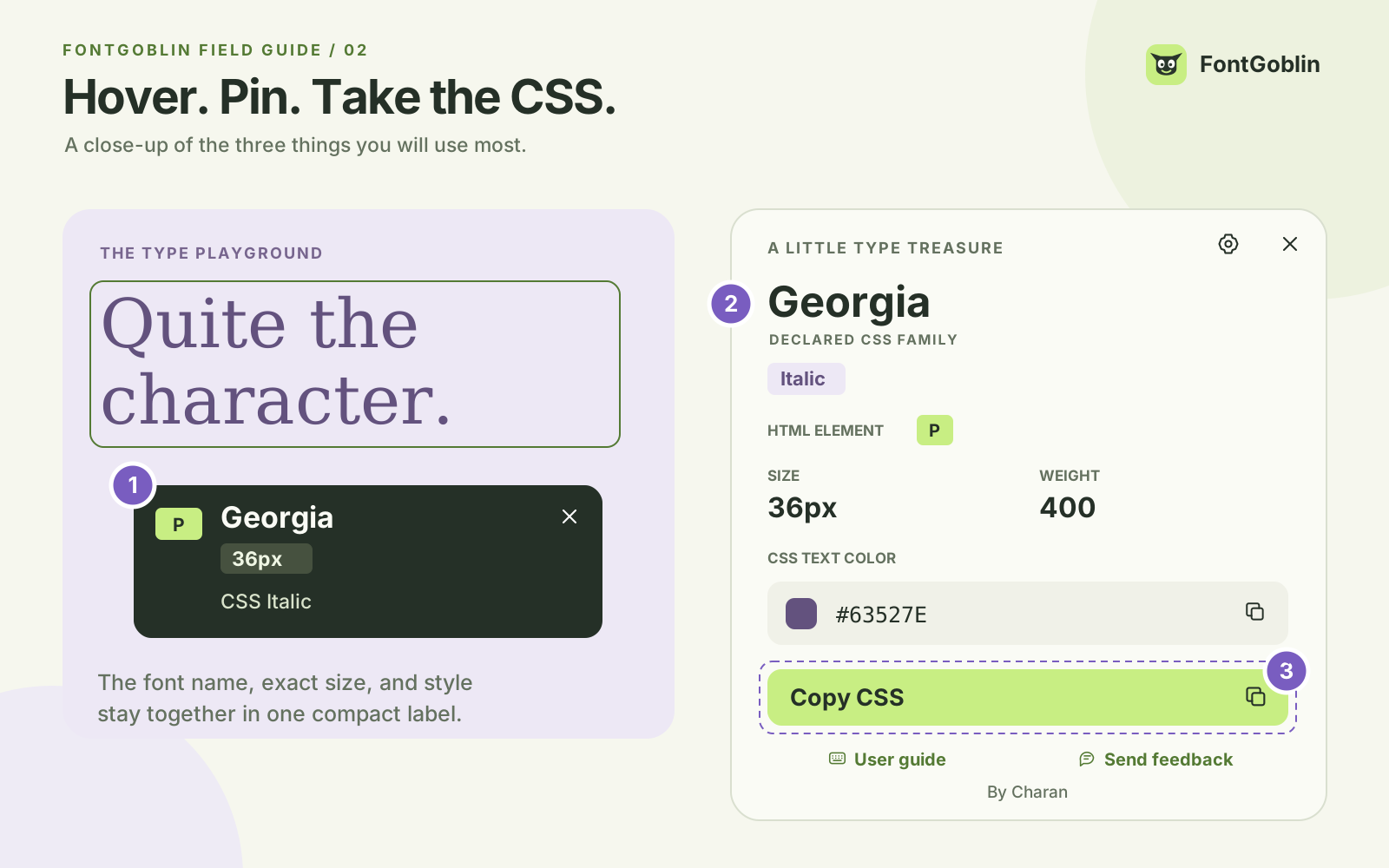
Hover over text to see its font family, size, style, and HTML tag. Click to keep the details in the panel.
In the hover label, the size sits between the font name and its style. The style label describes computed CSS, such as Regular, Bold, Italic, or a numeric weight.
The closer look
Open Preview & full details for spacing, line height, the full font stack, advanced CSS font controls, and an editable preview.
FontGoblin reports computed CSS. The browser may draw individual characters with a fallback font; the family name is not proof of the rendered font for every letter.
03
LESS PANEL. SAME CURIOSITY.
Small enough to stay out of the way.
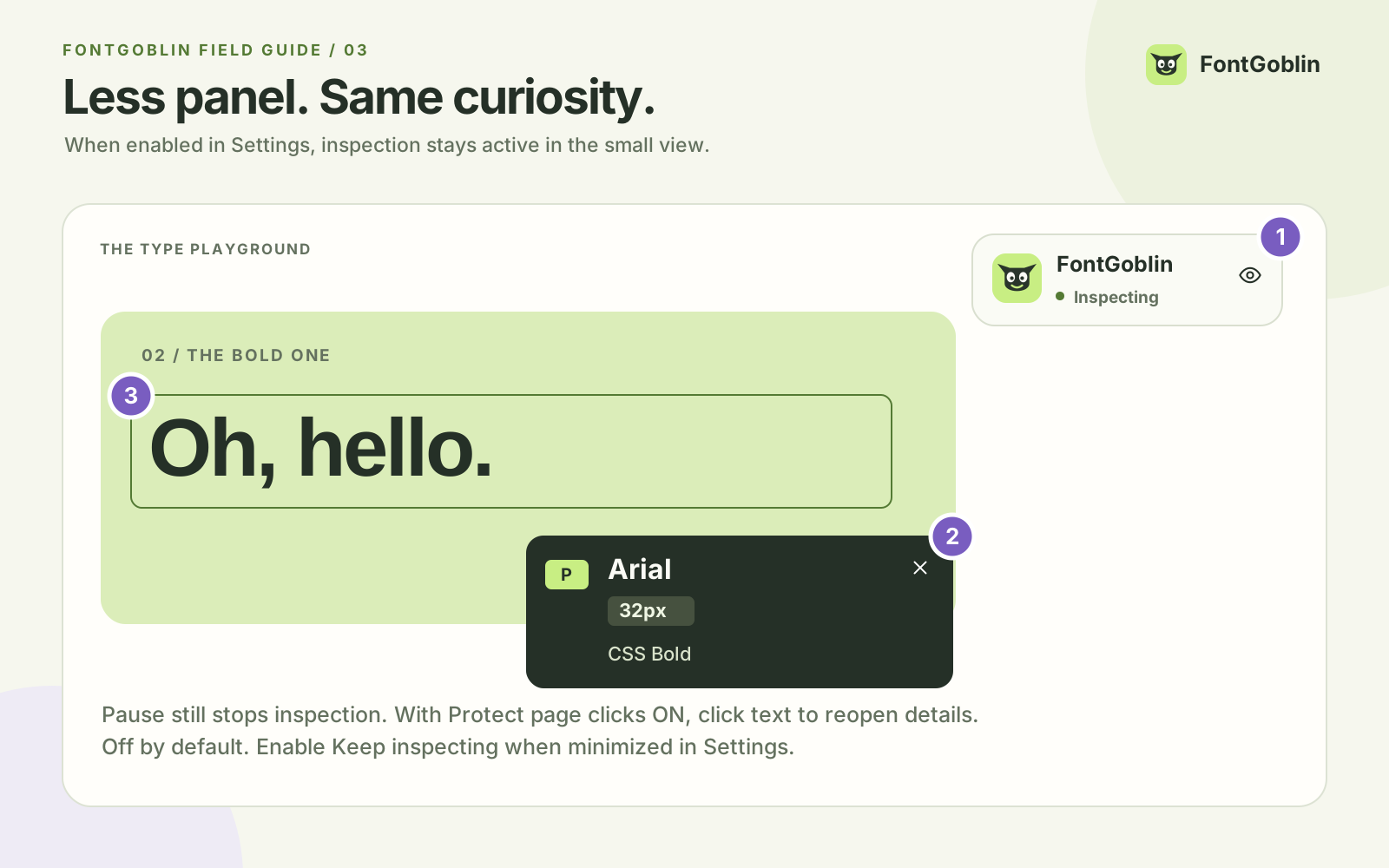
Minimize the panel to its small launcher. Hover inspection stops by default without changing your Pause choice. Turn on Keep inspecting when minimized in Settings if you want to keep inspecting in the small view.
WHEN ENABLED IN SETTINGSOptional inspection while minimized. Annotated interface walkthrough.Original v1.6.0 capture
Minimize
Collapses the panel and stops hover inspection by default. Open Settings to enable inspection while minimized. Click the launcher to bring the panel back. With inspection and Protect page clicks both on, clicking page text also opens its pinned details.
Pause
Stops inspecting so you can use the webpage. Minimizing and restoring keep your manual Pause choice. Resume when you want to inspect again.
Exit
Closes FontGoblin and clears the picks held in that tab. Press Esc or use a close button.
Drag the toolbar grip or launcher to a comfortable spot. With minimized restoration enabled, the launcher can return after navigation within the same website origin and tab, even when inspection while minimized is off. A different origin, a new tab, or a browser restart needs activation again.
04
YOUR INSPECTOR. YOUR WAY.
Keep the controls that suit you.
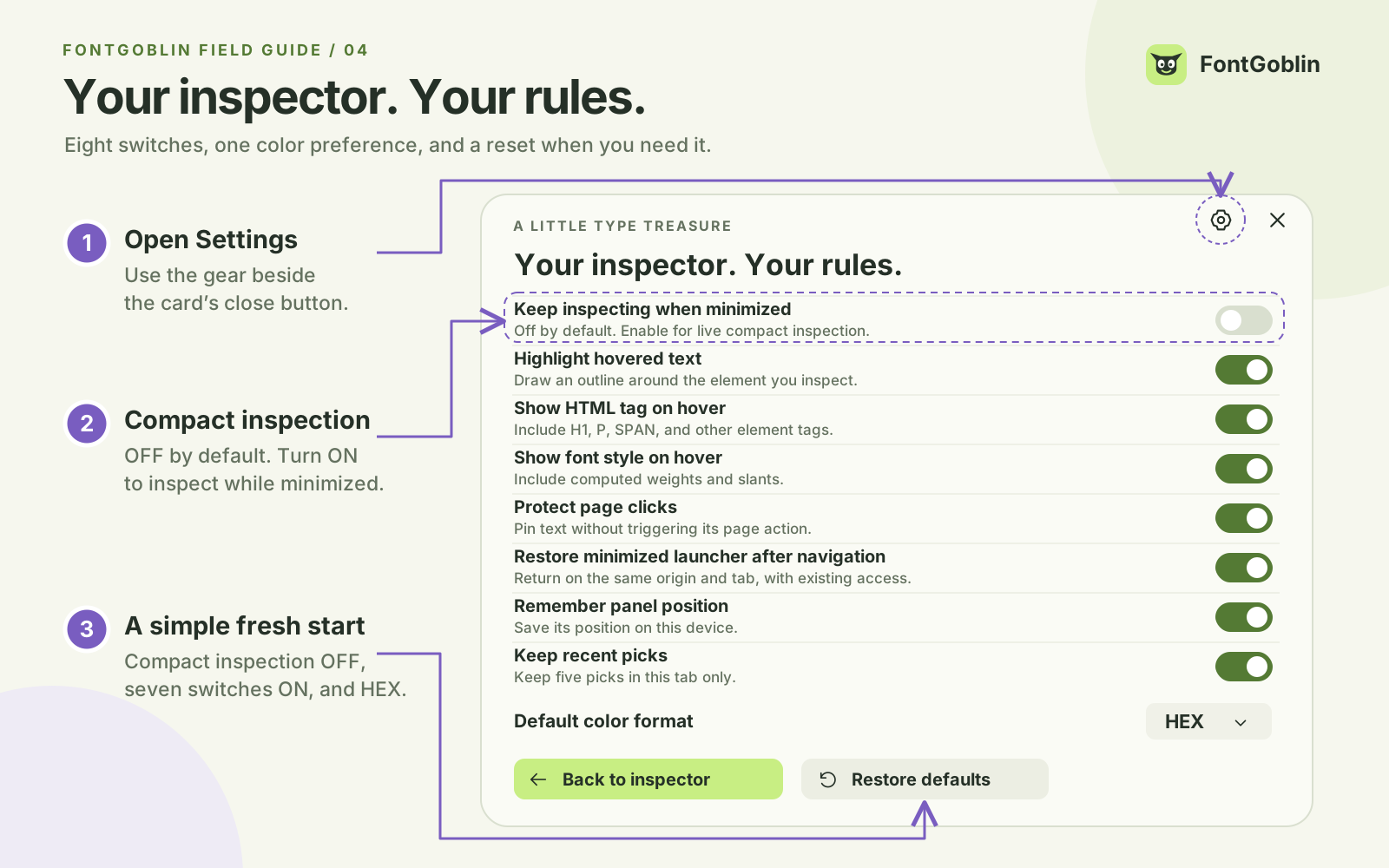
Open the settings button beside the card’s close button. Eight switches control how inspection behaves, and one menu sets your preferred color format. Scroll inside Settings to reach the remaining controls and Restore defaults.
Off by default. Turn it on to keep hover inspection active while the panel is collapsed. Pause still stops inspection.
Highlight hovered text
Show an outline around the element you are inspecting. Turn it off for an unobstructed view of the page.
Show HTML tag on hover
Include the element tag, such as H1, H2, P, or SPAN, in the hover label.
Show font style on hover
Include the computed style label, such as Regular, Bold, or Italic, in the hover label.
Protect page clicks
Keep inspected text clicks from triggering their page action. Turn it off for hover-only inspection while ordinary page clicks work normally.
Restore minimized launcher after navigation
Allow the minimized launcher to return within the same origin and tab, while Chrome’s existing page-access grant remains valid. This works even when inspection while minimized is off.
Remember panel position
Save the inspector’s position locally for later use. Turn it off when you prefer not to retain its placement.
Keep recent picks
Keep up to five recent selections in the current tab’s memory. Turning this off clears that history and stops adding new recent picks.
ONE MORE USEFUL CHOICE
Default color format
Start with HEX, RGB, HSL, HWB, or CSS. HEX is the default. You can still change the displayed format in the color section while inspecting. Use Restore defaults to turn inspection while minimized OFF, the other seven switches ON, and the default format to HEX.
Preferences are saved on your device and preserved when you update. If you previously enabled inspection while minimized, turn it off or choose Restore defaults to use the new defaults. Inspected text, recent picks, comparisons, and sampled colors are not saved to extension storage. See what is stored.
05
A GOOD LITTLE COLOR FIND
The CSS value. Or the screen pixel.
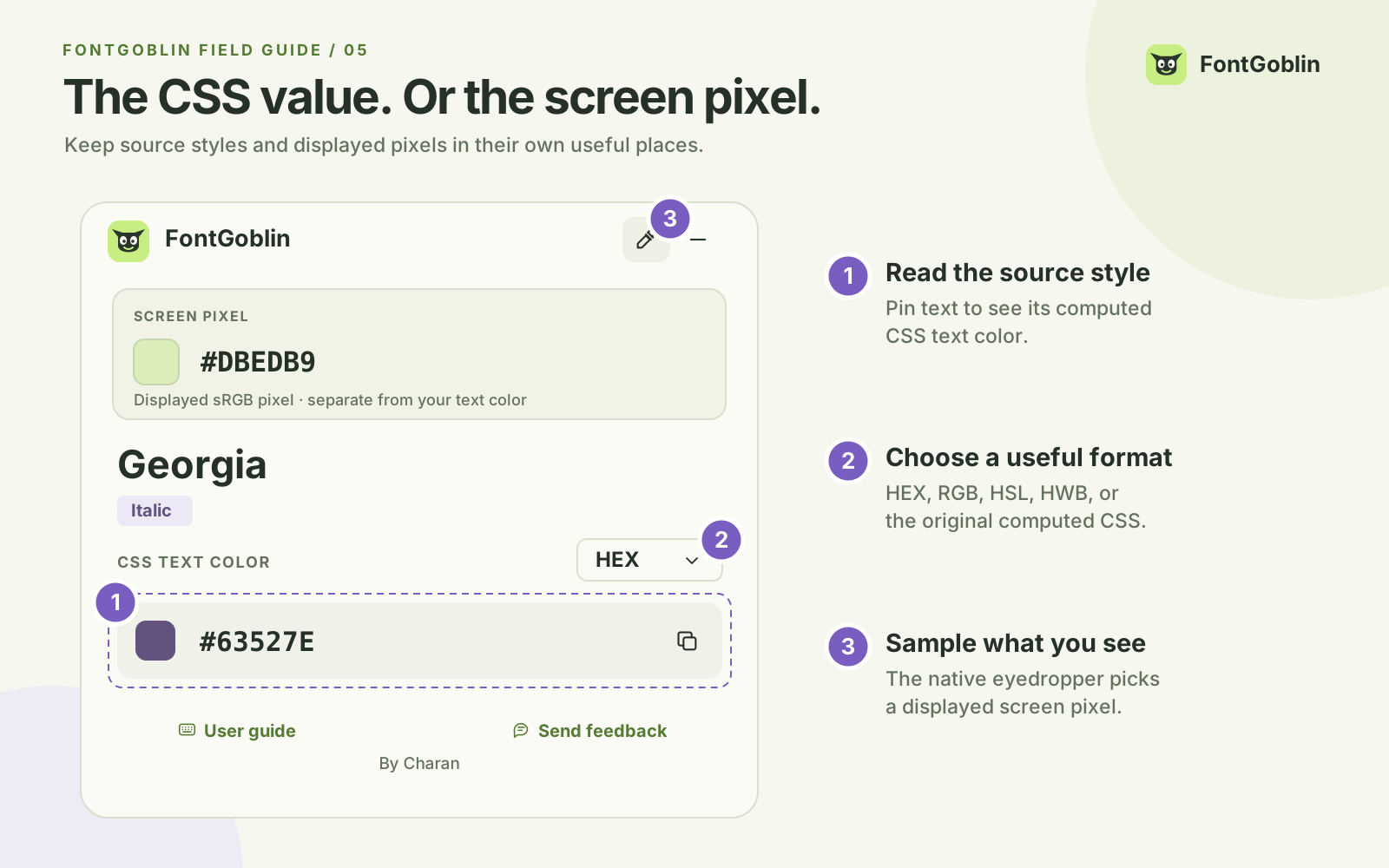
Two useful tools answer two different questions. Inspect text for its CSS color, or use the eyedropper to sample a displayed pixel.
Pin a text element. Choose a format in its color menu and click the color value to copy it. CSS keeps the original computed CSS value.
2
Sample a screen color
Click the eyedropper in the toolbar, then click a screen pixel. The inspector gets out of the way while the native picker is open. Press Esc to cancel.
3
Keep the context
For a determinable solid CSS text/background pair, the panel estimates contrast with normal- and large-text AA guidance. Complex backgrounds can show Unavailable.
The eyedropper returns a displayed sRGB pixel. Antialiasing, transparency, and color management can make it differ from the source CSS. Converted wide-gamut CSS colors are labeled as sRGB approximations.
06
TAKE THE USEFUL BIT WITH YOU
Compare a pair. Copy a detail.
Compare two styles
Pin a sample and choose Compare this pick to keep it as A. Inspect another sample for B. Review their families, sizes, weights, styles, and colors side by side.
Use the comparison’s clear control to remove A. The comparison stays in the current tab’s memory.
Copy exactly what you need
Choose Copy CSS for the computed font properties. Click a color value for that format. Expand full details to copy the element’s CSS selector.
The selector is checked against the selected element at copy time. Its scope is that document, same-origin frame, or open shadow root.
07
A LITTLE LESS CLICKING
Keep your hands on the keyboard.
Open or exit FontGoblin
Alt+Shift+F
Minimize or restore
Alt+Shift+H
Pause or resume inspection
Alt+Shift+K
Exit completely
Esc
The pause shortcut also works while minimized. The launcher shows whether inspection is active or paused.
These are default shortcuts and may be occupied by another app or extension. Set your own combinations at chrome://extensions/shortcuts.
For keyboard positioning, focus the toolbar grip and use the arrow keys. Hold Shift to move farther.
08
WHEN SOMETHING FEELS OFF
A few useful answers.
The panel is minimized, but hovering does nothing.
This is the default in version 1.6.2. For hover inspection in the small view, restore the panel, check that inspection is not paused, and turn on Keep inspecting when minimized in Settings. An older installed version may not have this control.
I want to click links while inspecting.
Turn off Protect page clicks in Settings to let clicks reach the webpage while keeping hover inspection. You can also Pause whenever you want to interact without inspection.
FontGoblin does not appear on this page.
Activate it on a regular webpage. Chrome protects internal pages, the Web Store, and built-in PDF views. Cross-origin and sandboxed frames are restricted; try opening that content in its own tab. For local files, Chrome requires file access to be enabled for the extension.
The launcher disappeared after navigation.
Restoration must be enabled and applies only while minimized, within the same origin and tab, using Chrome’s existing page-access permission. A different origin, a new tab, or a browser restart requires activation again.
The CSS font and the visible letters seem different.
Computed CSS describes the font stack requested by the page. Missing fonts, unsupported characters, fallback choices, and synthetic styles can affect what the browser actually draws. FontGoblin keeps this distinction visible rather than guessing a font face.
How do I report a problem or suggest a feature?
Use the feedback form. Include your installed extension version, browser, what you expected, and what happened. Leave out passwords and private page content. Name and email are optional.