
A PRACTICAL FONT CHECK
How to find what font a website uses in Chrome
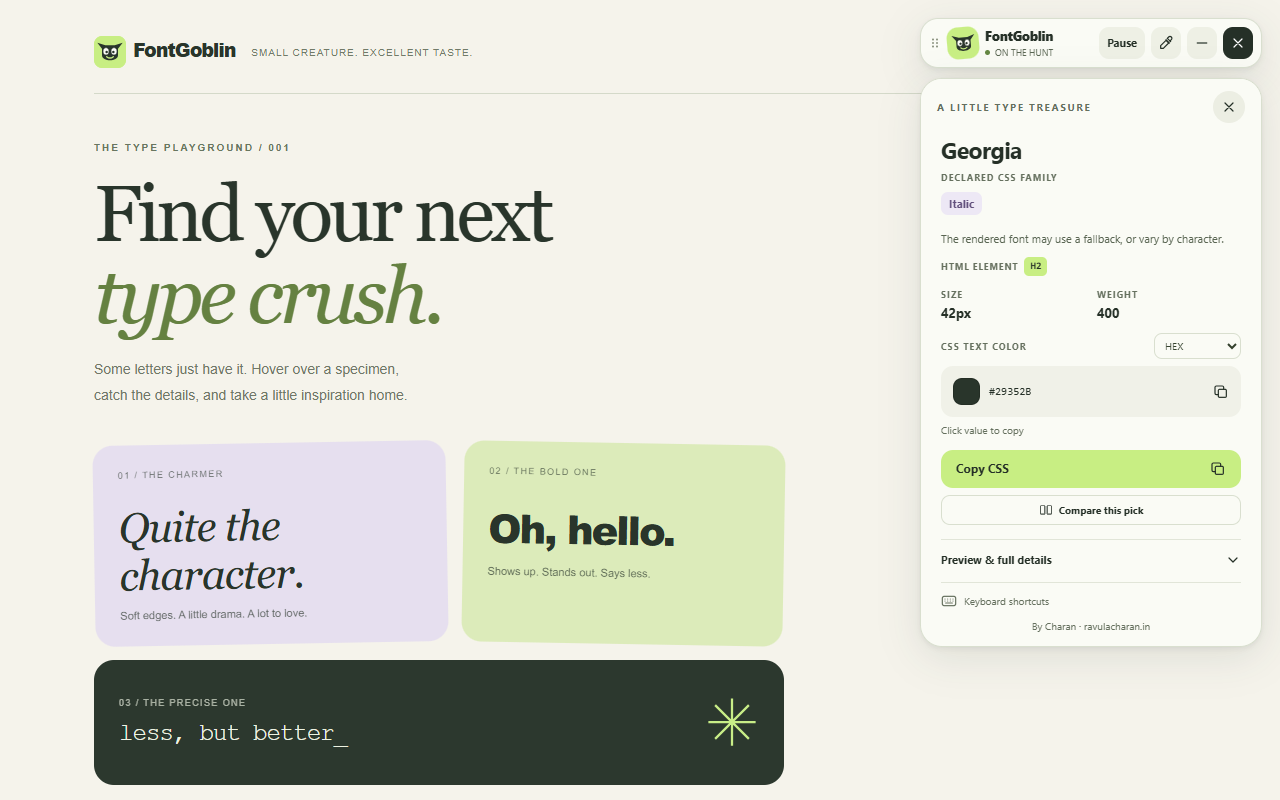
Hover over page text with FontGoblin to read its computed font family, size, and style. If you need to confirm which font actually drew the letters, inspect the same element in Chrome DevTools and check Rendered Fonts.
Find the font with FontGoblin
A heading catches your eye, but its name is only part of the answer. Size, weight, spacing, and italic style all affect how it looks. Start with the text you want to understand.
- Activate the inspector. Install FontGoblin from the Chrome Web Store, open a regular webpage, and click its toolbar icon. Choose Start inspecting.
- Hover over the actual words. The label shows their computed CSS family, size, style, and HTML tag. Move between a heading and body text to see the difference.
- Click to keep the details. Read the numeric weight and color, or expand Preview & full details for line height, spacing, and the font stack. Copy the CSS if you need those values.
Try a font size and weight check
This specimen uses a fixed 42px heading and an 18px italic paragraph. Both start at weight 400. Select either one below, then change its weight to 700. The readout comes from this page’s computed CSS, so you can check it against FontGoblin.
Good type deserves a closer look.
Notice how a small change in weight changes the same words.
Selected element: H2
font-family: Georgia, "Times New Roman", serif;
font-size: 42px;
font-weight: 400;
font-style: normal;
Weight 400 commonly means Regular, and 700 means Bold. Italic is a separate style: the paragraph can be both italic and bold. A browser may synthesize a heavier or slanted appearance when the corresponding font face is unavailable. The CSS value alone cannot confirm that a particular face loaded.
For a useful comparison, inspect the heading at 400 and choose Compare this pick. Make it bold, then inspect it again. The family and size should stay the same while the weight changes to 700. Next select the paragraph: its smaller size and italic style give you a second difference to check. Reload this page to restore the starting values. This example changes its own CSS; it does not require FontGoblin to run.
Check the font Chrome actually renders
A family such as Georgia, "Times New Roman", serif is a list of choices. The browser may use another member of the stack, or a fallback for an unsupported character. To investigate a mismatch:
- Right-click the text and choose Inspect.
- In Elements, select the element containing those words.
- Open Computed to read the applied CSS properties. Scroll to Rendered Fonts to see the fonts Chrome used for the selection.
If the font is still loading, give the page a moment and check again. Different scripts or symbols in one element can need different fonts. Chrome documents the Computed panel and a Rendered Fonts example.
Read the size in context
The size is in CSS pixels, not a count of physical screen pixels. Browser zoom, display scaling, and the font’s own proportions affect its visible appearance. Many websites also resize text with the viewport. Inspect the same element at the width you are designing for, and check its line height and letter spacing alongside the size.
When a font check gives no useful answer
If the letters are part of an image or canvas, a CSS inspector cannot reliably identify them. Look for a text version or use an image-based identification service. For an embedded frame, try opening its content in a separate tab; cross-origin or sandbox restrictions can prevent inspection.
Chrome also protects its internal pages, the Web Store, and built-in PDF views. Test FontGoblin on a regular webpage first. If the font looks wrong there, compare the requested family with Rendered Fonts before assuming the inspector has found the wrong name.