Hover to peek
Point at page text to see its computed CSS font family, size, style, and HTML tag beside your cursor.
GeorgiaH2 · 42px
Good type is worth catching.
FontGoblin is a free font inspector and color picker for Chrome. Hover over text to read its computed font family, size, style, and HTML tag. Click to keep the details, compare two picks, or copy the CSS for your own work.
Desktop Chrome 127+No accountNo uploads
Find out what font a website uses from its computed CSS. Hover for the font name, size, and style, then click to keep the details.
Point at page text to see its computed CSS font family, size, style, and HTML tag beside your cursor.
Keep the tag, font stack, size, weight, spacing, style, and color in one tidy panel. Compare two picks when you want.
Take the computed CSS, a color value, or a selector checked for this element at copy time.
FontGoblin stays small, moves where you want it, and tells you what the page’s CSS actually says.
See H1, H2, P, or the actual tag under your cursor. Expand full details to copy a selector checked against the element at copy time.
h2#serif-sampleChecked within its page or rootSave one pick as A, choose another as B, and compare their family, tag, size, weight, style, and color side by side.
Get a contrast estimate for solid CSS color pairs, with normal and large text AA thresholds. Uncertain pairs show Unavailable.
FontGoblin has eight settings switches and a default color format. Choose your hover details, control page clicks, and optionally inspect while minimized. Minimized inspection starts off.
Less panel. More control.Learn the settings in the user guideTwo real views of FontGoblin on the same type specimen page. Take a closer look.
Pin the tag, font details, and color. Expand full details for the CSS selector.
Open full screenshot
Play with a few built-in font stacks right here. The real extension reads the computed CSS of the pages you visit.
font-family: Georgia, serif;
font-size: 42px;
font-weight: 400;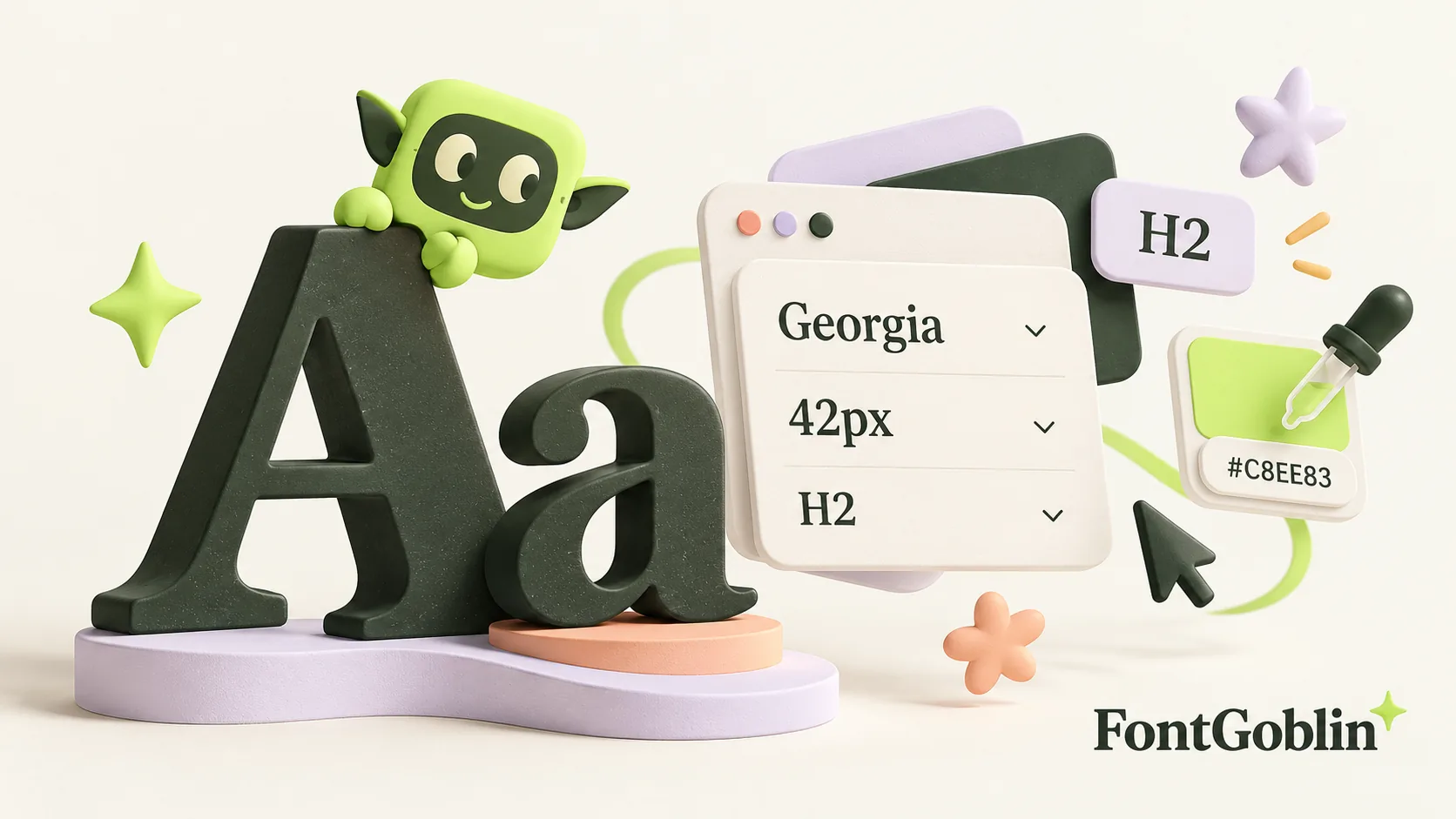
Check the size and weight of a heading, understand a fallback font, or choose an inspector that fits how you work. These guides take you through the actual steps.
 NO SNEAKY BUSINESS
FontGoblin starts when you choose it. It reads styles and short text snippets on the active page to show your picks. Inspected text, colors, and comparisons stay in that tab; your preferences, enabled panel position, and first-use choice persist locally. When minimized restoration is enabled, a temporary per-tab record keeps the launcher available as you browse the same website origin. No account, analytics, or uploads of inspected data.
Want to help improve the extension? Send website feedback. Messages you choose to submit are stored for review, as explained in the feedback privacy notice.
Read the privacy policyInstall FontGoblin for free from the Chrome Web Store. Inspect website fonts, compare typography, pick colors, and copy CSS while you browse.
Add to Chrome Version 1.6.2 · Desktop Chrome 127+ · Free · No accountVersion 1.6.2 includes a settings panel with eight switches, a default color format, and optional inspection while minimized. Inspection while minimized is off by default; updating preserves your saved choices. Permissions stay limited to activeTab, scripting, and storage. Install from the Chrome Web Store for automatic updates. The ZIP below is available for manual installation.
Download v1.6.2 ZIPFor manual installation, unzip the file, open chrome://extensions, turn on Developer mode, choose Load unpacked, and select the folder containing manifest.json.
Choose Add to Chrome on the FontGoblin Chrome Web Store page.
Open a regular webpage and click FontGoblin in Chrome’s Extensions menu.
Choose Start inspecting. Hover over text, click to pin its details, and copy the CSS you need.
Read the illustrated user guide for settings, minimized inspection, colors, and troubleshooting. Pin FontGoblin to your toolbar for quick access. The default open / exit shortcut is Alt + Shift + F.
Yes. In version 1.6.2, this option is off by default. Open Settings and turn on Keep inspecting when minimized. The hover label stays active while the panel is collapsed. Pause still stops inspection. The user guide explains the controls.
Install FontGoblin from the Chrome Web Store, open a regular webpage, and activate the extension. Choose Start inspecting, then hover over text to see its computed CSS font family, font size, style, and HTML tag. Click to pin the details and copy the CSS.
Yes. The hover label and pinned panel show styles such as Regular, Bold, Italic, and Bold Italic. The panel also shows the numeric CSS font weight, including nonstandard values. These describe computed CSS; rendered font faces may differ.
It reports the page's computed CSS font family and full stack. The browser may use a fallback font for a particular character.
The native picker samples a displayed sRGB pixel. Antialiasing, transparency, and color management can make that pixel differ from the CSS source value.
No. It estimates contrast from a solid CSS text/background pair and shows normal- and large-text AA guidance. Complex or uncertain backgrounds show Unavailable. Check the rendered page as part of a full accessibility review.
It works on regular webpages and accessible same-origin frames. Chrome protects internal pages, the Web Store, built-in PDF pages, and cross-origin frames.
After you start inspection, short snippets may appear in the preview and recent picks. The comparison holds style values only. They stay in the tab's memory and clear when you exit or reload. The privacy policy explains this in detail.